Showing posts with label windows. Show all posts

Monday, January 24, 2022

Making Everything Bigger in Windows 10

From "Fonts, sizes and color settings of the Outlook interface"

Windows 10

- Right click on an empty spot on your Desktop and choose “Display Settings”.

- In the “Scale and layout section”, use the “Change the size of text, apps, and other items” dropdown list to set your preferred zoom level.

- To set a custom zoom level, press the Custom scaling link (Windows 10 Version 1709) or the “Advanced scaling settings” link (Windows 10 Version 1803). Since Version 1803, Windows can also detect desktop apps which don’t zoom and improve their graphics output via the option: Let Windows try to fix apps so they’re not blurry.


Another way to adjust this is the Ctrl + and - in your browser. If things are too big, you can always adjust things in browsers. 


Friday, September 25, 2020

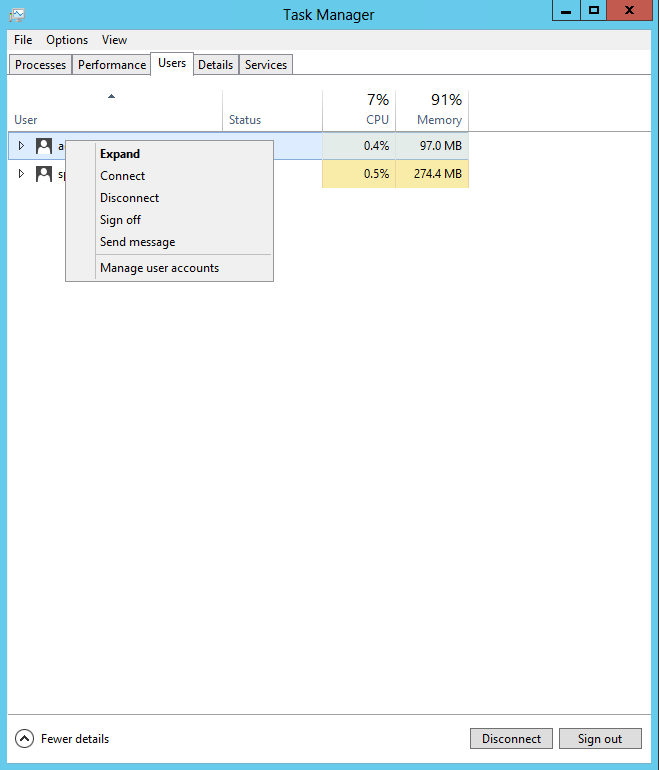
Connecting or Ending another RDP session in Windows 2012

From "Connecting or Ending another RDP session in Windows 2012"

https://justworks.ca/blog/connecting-or-ending-another-rdp-session-in-windows-2012#:~:text=Simply%20bring%20up%20Task%20Manager,to%20or%20end%20the%20session.&text=Simple%2C%20but%20non%2Dobvious. 

"Simply bring up Task Manager, click More Details to switch to the "Actually Useful" mode, and then click the Users Tab.  All current sessions will be displayed, along with a list of their processes.  Right click on any session to connect to or end the session."


Thursday, September 10, 2020

How to Pin Any Folder to the Start Menu in Windows 10

 Thanks to https://winaero.com/blog/pin-folder-taskbar-windows-10/ for showing me how to pin a folder to the Windows 10 start menu. 

The picture below shows "Pin to taskbar". In my case, it showed "Pin to Start". It will let me open this directory in Windows Explorer quickly. 


Tuesday, October 15, 2019

How to set apps to always run as an administrator on Windows 10

From https://www.windowscentral.com/how-set-apps-always-run-administrator-windows-10

Here is one way to always run as an administrator

- Pin the application to the windows taskbar.
- Right click on the application in the taskbar.
- Right click on the application in the popup. Choose Properties then the Advanced button
- Check the "Run as administrator" checkbox

Saturday, May 19, 2018

How to setup Google Cloud Print

I spent several hours this morning trying to get a printer so that it would be available for other computers on my home network to print.

I have a desktop upstairs with a wireless connection. For whatever reason, it cannot connect consistently to my printer when set up through WiFi nor on the wired downstairs desktop when connected by USB. I have reproduced the problem when I sit next to the upstairs desktop using my laptop.

In short,
1 - Set up Google Cloud Print Service so that your printer will be available even if you are not logged into the computer that has your printer attached
  https://tools.google.com/dlpage/cloudprintservice
2 - Install Google Cloud Printer driver on the windows computers that you want to print from.
  https://tools.google.com/dlpage/cloudprintdriver
3 - Share the Google Cloud Printer with others you want to be able to print from a Chromebook.


For more detail, follow the video tutorial. It helped me get my printing up and running.
How to setup Google Cloud Print

You can get the Google Cloud Print Connector here

https://github.com/google/cloud-print-connector/wiki/Windows-MSI-Installation

https://github.com/google/cloud-print-connector/releases


Google Cloud Print Service
https://tools.google.com/dlpage/cloudprintservice


I also tried installing "Cloud Print for Windows". http://www.swdevs.com/cps.htm

It seems to do what the Google Cloud Print Service already does. But with some windows apps to configure it.

I also tried installing Google Cloud Printer driver.
https://tools.google.com/dlpage/cloudprintdriver

-

Saturday, March 31, 2018

Steps I took to install Windows 10 on a New Hard Drive

I am installing Windows 10 on a new machine. I used the "Create Windows 10 installation media" tool from https://www.microsoft.com/en-us/software-download/windows10
to create a USB to install Windows 10 from.

I had to press F12 while it was booting up while the USB was in the correct slot. The first slot I picked did not work.

I also had to disconnect the secondary hard drive.

I had to partition the hard drive and format it. I used method 3 from https://www.avoiderrors.net/unable-create-new-system-partition/. I found this from his video, https://www.youtube.com/watch?v=o4ilMAAk1Q8

Method 3
1. When you see the error in question, press Shift+F10 to open the command prompt.
2. In the command prompt type diskpart and hit Enter.
3. Then type list disk and hit Enter.
4. Type select disk  X (X being the local drive.), and then hit Enter. In my case the disk where I want to install Windows 7 is Disk 0, so the command would be “select disk 0”
5. Type clean and hit Enter.
6. Now type create partition primary size=5000 and hit Enter.
7. Now type format fs=ntfs quick and phit Enter. This command will format the partition using NTFS.
8. Type assign and hit Enter. This will assign a drive letter to the partition.
9. Type active and hit Enter.
10. Type list volume and hit Enter. To list the drive letters of the Windows installation media (USB/Disc).

I modified the steps above. I used the diskpart command line program to partition and format the whole SSD. I had the secondary hard drive plugged in. One of the other methods probably would have worked if I had disconnected it to begin with. Once I disconnected it and tried again, it was able to start the installation.

When the installation wizard asked, I entered my license key from the defective hard drive.

I did not have it use a Microsoft account. I used a disconnected one.


The first error was "We couldn't create a new partition or locate an existing one.". This was fixed by using diskpart to partition and format the disk.

The second error was "we couldn't install windows in the location you choose 0x80300001" I solved this by powering off the PC and disconnecting the secondary hard drive.



Wednesday, March 14, 2018

Show Titles of Windows in Taskbar

 [Windows-Logo]+[Q] and search for taskbar

Go down to the "Combine taskbar buttons" and change the setting to "When taskbar is full"


Friday, March 09, 2018

A tooltip is stuck on the desktop and will not go away.

On my new Windows 10 laptop, I sometimes will get a tooltip that remains on the screen. It stays if I switch applications, if I minimize, if I lock the screen.

From Microsoft Answers I found that if I press [Windows Key] + [D], it minimizes all windows and it goes away.

Saturday, January 13, 2018

How to change Windows 10 Lock Screen Timeout Period

Windows 10 has a beautiful "Windows Spotlight" background on the lock screen.
The problem is that by default you only get a minute of it. Here is how to set that value.

(Similar instructions at https://www.onmsft.com/how-to/adjust-windows-10-lock-screen-timeout )
From http://www.thewindowsclub.com/enable-console-lock-display-timeout-windows-8

Open Registry Editor and navigate to the following key: 
HKEY_LOCAL_MACHINE\ SYSTEM\ CurrentControlSet\ Control\ Power\ PowerSettings\ 7516b95f-f776-4464-8c53-06167f40cc99\ 8EC4B3A5-6868-48c2-BE75-4F3044BE88A7 
Now in the right pane, you will see Attributes. Double-click on it to change its DWORD value data from the default 1 to 2.
Having done this, now open Power Options > Advanced Power Settings via Control Panel. Expand the Display item. You will now see an additional entry: Console lock display off timeout. 
You would not have seen it earlier, but after editing the registry, you will get to see it. 

Friday, January 05, 2018

Windows Keyboard Shortcuts I Use

Windows 10

Winkey + A - Activates Action Center

Winkey + R - Run a command

Winkey + E - Opens File Explorer

Winkey + D - Shows desktop

Winkey + E - Opens File Explorer

Winkey + L - Locks a machine

Winkey + R - Run a command

Winkey + S - Activates Cortana

Winkey + X - Opens power user features

Winkey + Left / Right / Up / Down - Snaps apps to the side of a screen (press Up or Down after snapping left / right to enable four apps to snap)

Alt+Tab - Switch Tasks

From "The best Windows 10 keyboard shortcuts",  29 Jul 2015, Tom Warren, The Verge

PureText

https://stevemiller.net/puretext/

Winkey + V - pastes plain text

Windows 7


Taskbar and Start Menu Preferences

Here are the settings I like on Windows 10

Combine taskbar buttons 


I like the "When the taskbar is full" setting.


Here is what it looks like


Adjust for best performance


To adjust the visual effects in Windows
1. In the search box on the taskbar, type performance, then select Adjust the appearance and performance of Windows.
2. In the Performance Options dialog box, on the Visual Effects tab, select Adjust for best performance > Apply.

3. Restart your PC and see if that speeds up your PC.
(Tip #9 from this post)

I usually add a few things back to it like this.


---


Friday, September 08, 2017

Changing your own password on a RDP session on Windows Server 2012 R2


From http://rajdude.com/blog/changing-your-own-password-on-a-rdp-session-on-windows-server-2012-r2/

1. Click Start
2. Type osk (to bring up the on screen keyboard)
3. Hit enter
4. Once the on screen keyboard is open, hold ctrl+Alt on your physical keyboard, then click on the  del key in the on screen keyboard.
5. Minimize the on screen Keyboard
6. Click Change a password.

Saturday, September 02, 2017

Windows 7: How To Adjust for Best Performance

This is how to set your Windows 7 installation to "adjust for best performance"

- Click start button
- Right click on computer, choose properties
- Click Advanced system settings
- Click the Settings button in the Performance section
- Select the "Adjust for best performance" radio button and apply

See also, http://kb.xploretech.com/KnowledgebaseArticle10738.aspx

I check "Use visual styles on windows and buttons" because I think it looks too much like Windows 95 otherwise.

Thursday, April 14, 2016

Task Scheduler With Non-Zero Return Code

I get this solution from Win 2008 Task Scheduler With Return Code 1 (0X1)

It has been many hours very frustrated as to why my console app works fine running interactively but not when it runs in Window Task Scheduler.

I got this in the history for the task '...action "C:\Windows\SYSTEM32\cmd.exe" with return code 2147942401'

The solution was to do as the article above directs. Do NOT put the full file path in the program/script textbox. Instead put only the name of the bat file there. Put the path to the bat file in the Start in (Optional) field.

Wednesday, March 02, 2016

Why can't Windows 8 find the Startup Folder?

From https://support.microsoft.com/en-us/kb/2806079

Using a command prompt or windows run, (WindowsKey+R)

shell:startup

It will open the startup folder.

Monday, November 02, 2015

Shell:startup

In Windows 10, type this to open the startup folder, “shell:startup”
C:\Users\RichA\AppData\Roaming\Microsoft\Windows\Start Menu\Programs\Startup

How To Set Up a Second Monitor in Windows 8.1

From How To Set Up a Second Monitor in Windows 8.1

Press the Windows icon and the letter "P" on your keyboard at the same time. This will take you directly to the Second Screen options. Like on Step 4, click "Extend" to enable the external monitor.

Thursday, August 27, 2015

How to add or remove startup apps in Windows 10

- Press Win + R shortcut keys together and type the following into the Run box:
shell:Startup
- Add or delete shortcuts to the programs you want running to this folder.

Adapted from How to add or remove startup apps in Windows 10

Sunday, August 09, 2015

Speed Up Windows 10

Disable Shadow and Animation Effects to Improve Performance: 
By default, Windows 10 and all its previous version comes with eye catching shadow and animation effect that looks beautiful but this feature compromise with system performance. Extra effects and animation increase CPU and RAM loads, which results in slow system performance (High Speed CPU and Higher RAM works well). The situation became worse if you have got no great power CPU and and have minimal RAM.
But hey! Microsoft has added few options to disable shadow and animation effect. 
Open System > Properties > Advanced system settings. Now click on Settings available under Performance group in Advanced Tab. 
Quick Tips: You can also run sysdm.cpl command in Windows RUN (Win +R) box to open System Properties. (Speed Up Windows 10 – Master Tutorial to Make Windows 10 Super Fast)